
Interactive Site and Floor Plans allow users to create, manage, and publish interactive property plans directly within SharpLaunch. Users can upload site plans or floor plans, define interactive unit areas, associate those areas with available spaces, and preview the website experience before publishing.
The Interactive Plans workflow supports multiple plan uploads, editable mapped regions, and interactive website experiences that display leasing information when visitors interact with mapped areas.
Uploading a Site or Floor Plan
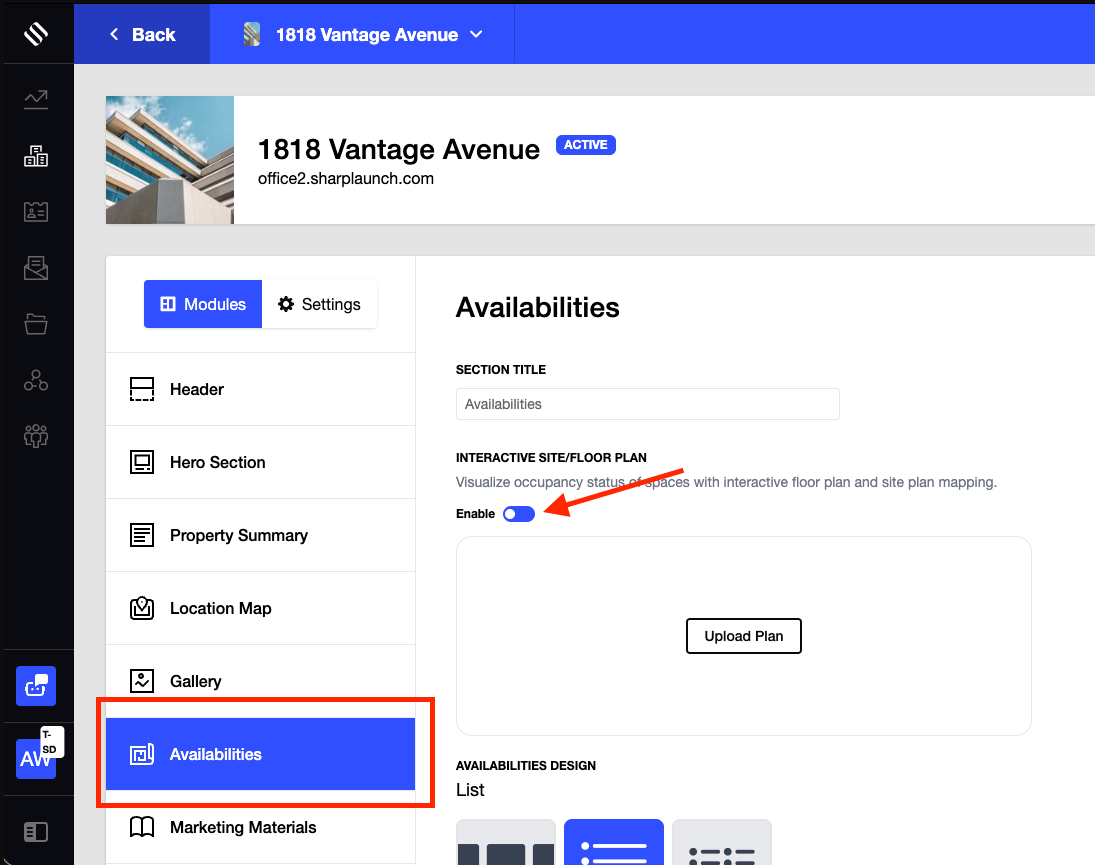
Interactive plans begin with uploading a floor plan or site plan image. You can enable this feature for each property by switching the toggle “On” from the Availabilities section at the property level:
Supported File Types
The following file types are supported:
- JPG
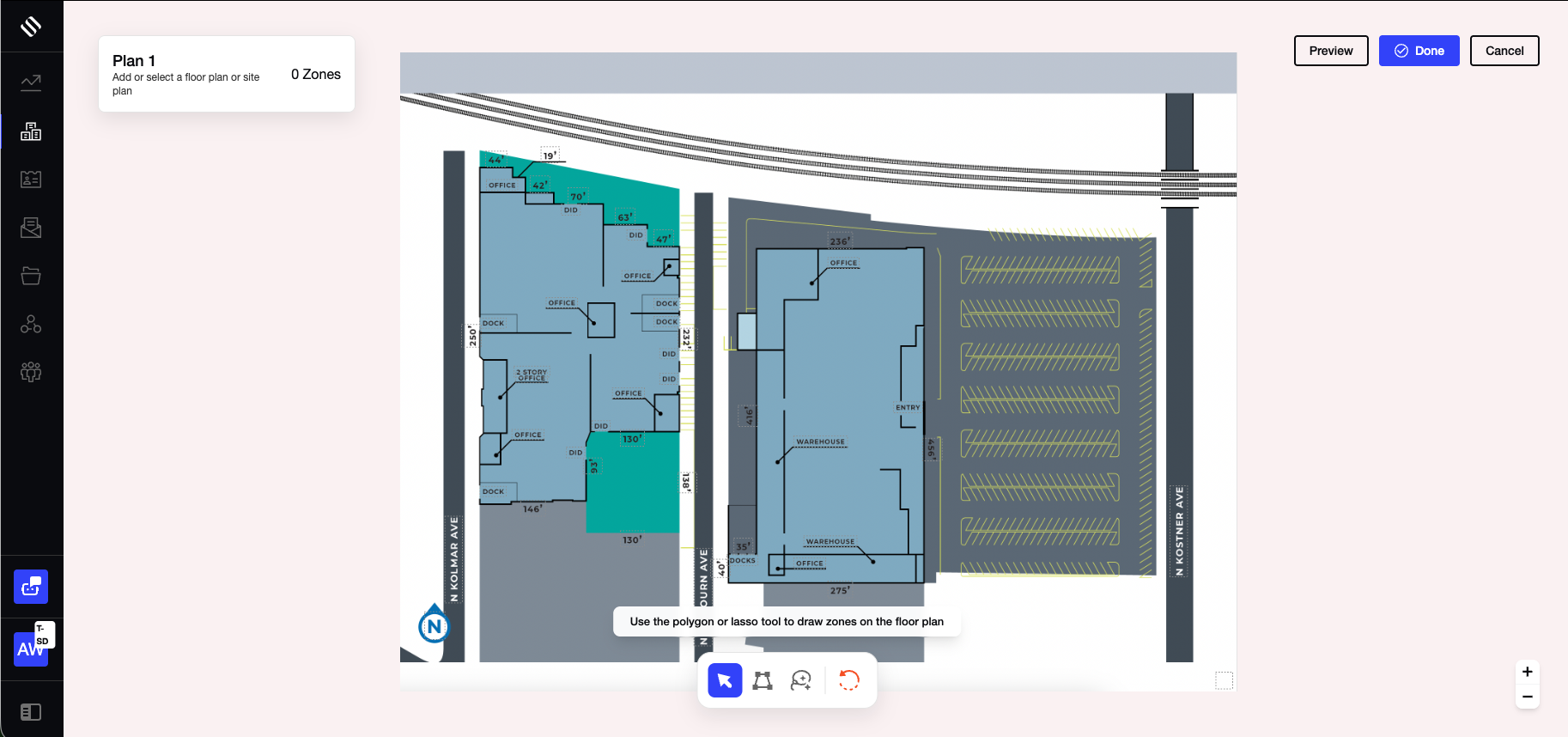
After uploading, the plan is displayed as the background layer within the interactive mapping workspace.
Canvas Navigation
The workspace includes navigation controls that allow users to:
- Zoom in and out
- Pan across the plan
- Navigate large or detailed floor plans
These controls help users accurately create and edit mapped areas.
Creating Interactive Mapped Areas
Interactive mapped areas define the regions visitors can interact with on a published plan.
Polygon Tool
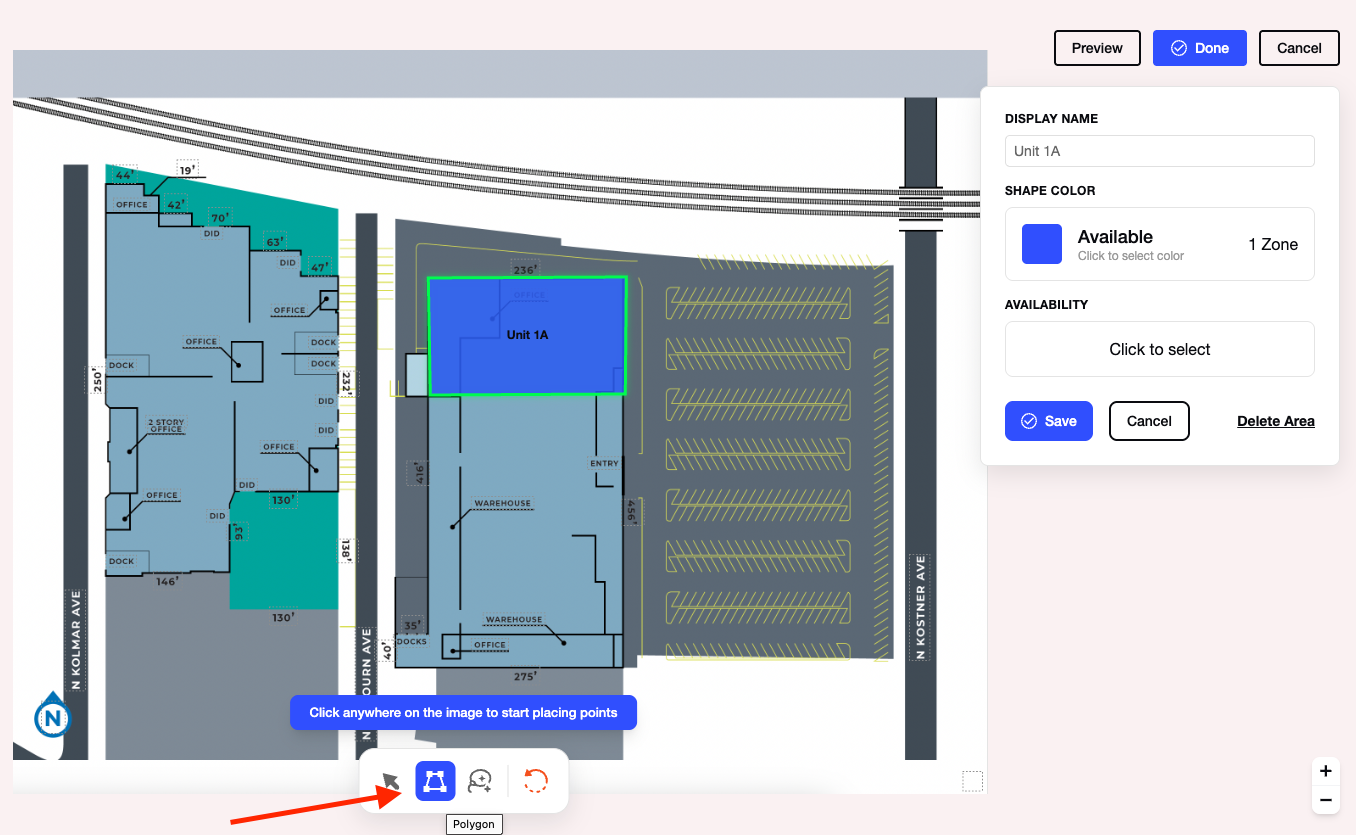
Use the Polygon tool to create precise boundaries.
To create a polygon:
- Select the Polygon tool.
- Click to place vertices around the desired area.
- Continue placing points until the shape is complete.
- Save the mapped area.
Polygon shapes are commonly used for suites, units, offices, and other spaces with defined boundaries.
Lasso / Freehand Tool
Use the Lasso tool to create freeform mapped areas.
To create a freeform shape:
- Select the Lasso tool.
- Click and drag to draw directly on the plan.
- Release the cursor to complete the shape.
- Save the mapped area.
This tool is useful for irregularly shaped spaces or areas that do not follow standard floor plan boundaries.
Reset Tool
The Reset tool removes all mapped areas from the current plan.
Use this option when you need to restart the mapping process.
Editing Existing Shapes
Mapped areas remain editable after they are created.
Editing Options
Users can:
- Select an existing shape
- Move vertices
- Adjust boundaries
- Refine mapped regions
Changes can be made at any time without recreating the shape.
This allows plans to remain accurate as property layouts or availability change.
Managing Multiple Plans
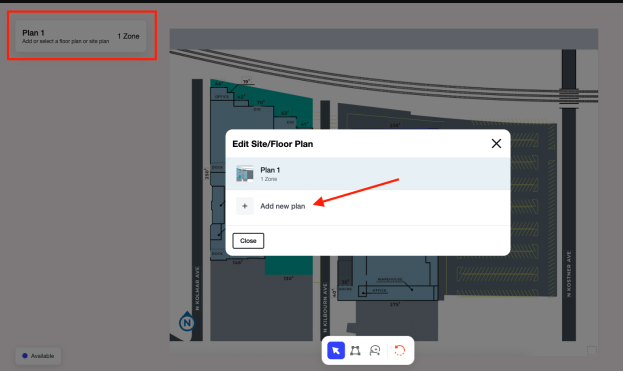
Multiple interactive plans can be managed within the same property.
Available Actions
Users can:
- Upload multiple plans
- Switch between plans
- Edit each plan independently
Common Use Cases
Multiple plans may be used for:
- Multi-floor buildings
- Different site views
- Alternative leasing layouts
- Campus-style properties
Each plan maintains its own mapped areas and configuration.
Previewing the Website Experience
Preview Mode allows users to review the interactive experience before publishing.
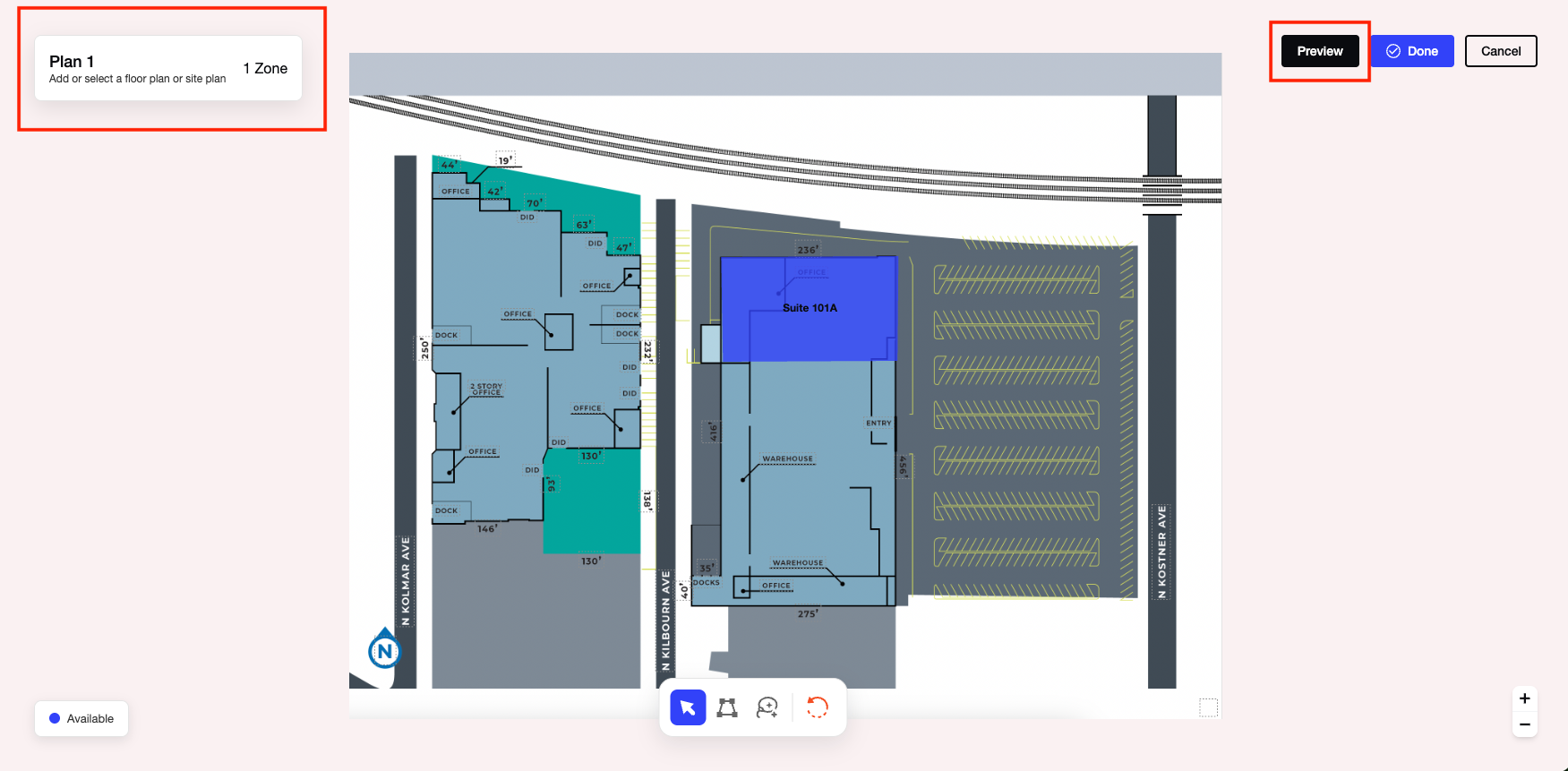
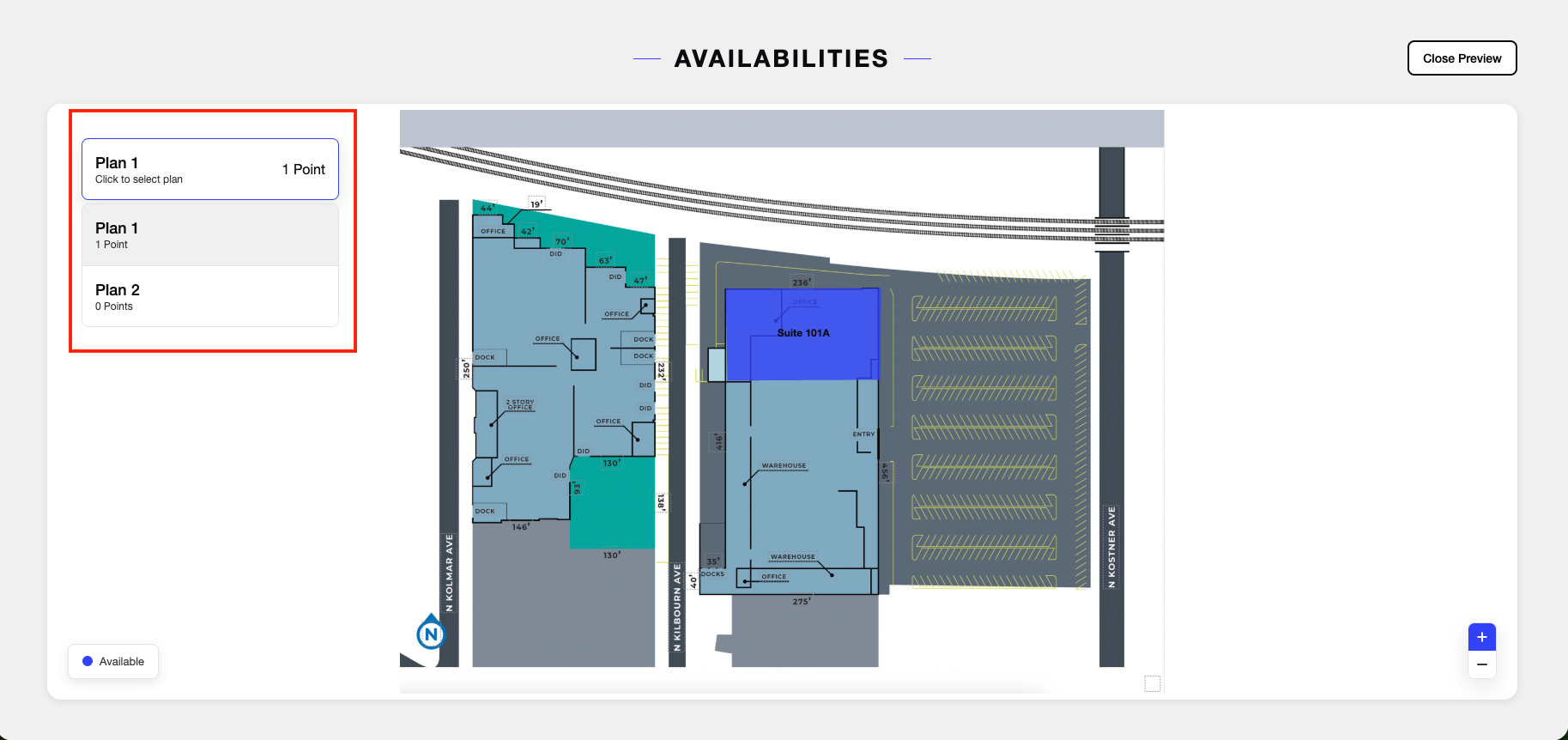
Preview Features
Users can verify:
- Hover interactions
- Active mapped areas
- Interactive highlighting
- Visual styling behavior
Preview Mode displays how visitors will interact with the plan on the website.
Website Visitor Experience
When an interactive plan is published, website visitors can interact directly with mapped areas.
Viewing Space Information
When a visitor hovers over a mapped area, the system displays associated space information in a modal window.
This allows visitors to explore available spaces directly from the floor plan or site plan.
Switching Between Plans
If multiple plans are available, visitors can:
- Switch between floor plans
- View different site layouts
- Navigate multiple building levels
This functionality is available directly within the published website experience.
Summary
Interactive Site and Floor Plans provide a complete workflow for creating and maintaining interactive property plans.
Key capabilities include:
- Uploading floor plans and site plans
- Creating interactive mapped areas
- Drawing polygon and freeform shapes
- Editing existing boundaries
- Managing multiple plans
- Previewing website interactions before publishing
- Displaying interactive space information to website visitors
These tools allow leasing teams to maintain accurate, interactive property plans and publish engaging property experiences on their websites.