
Property Intake lets you create a property by uploading one or two documents, such as a brochure and a spreadsheet. SharpLaunch reads your files, pulls out the property details, and fills in the property form for you. Nothing is saved until you’ve reviewed and edited the information.
Supported files
You can upload PDF, DOC/DOCX, CSV, and XLS/XLSX files, with up to two files per property. If a file format isn’t supported, you’ll see an error message and the file won’t be uploaded.
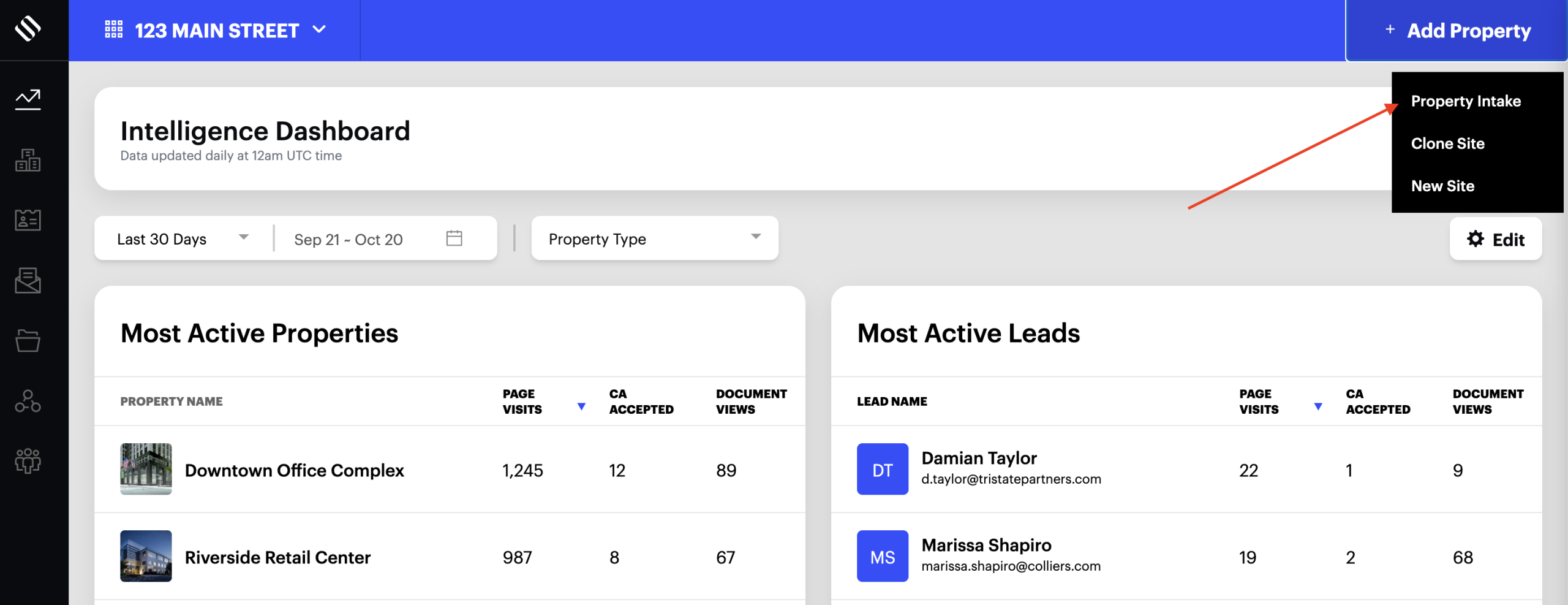
Create a property from your documents
- Click Add Property, then select Property Intake.
- Upload a file. If you have a second document about the same property, upload it as well.
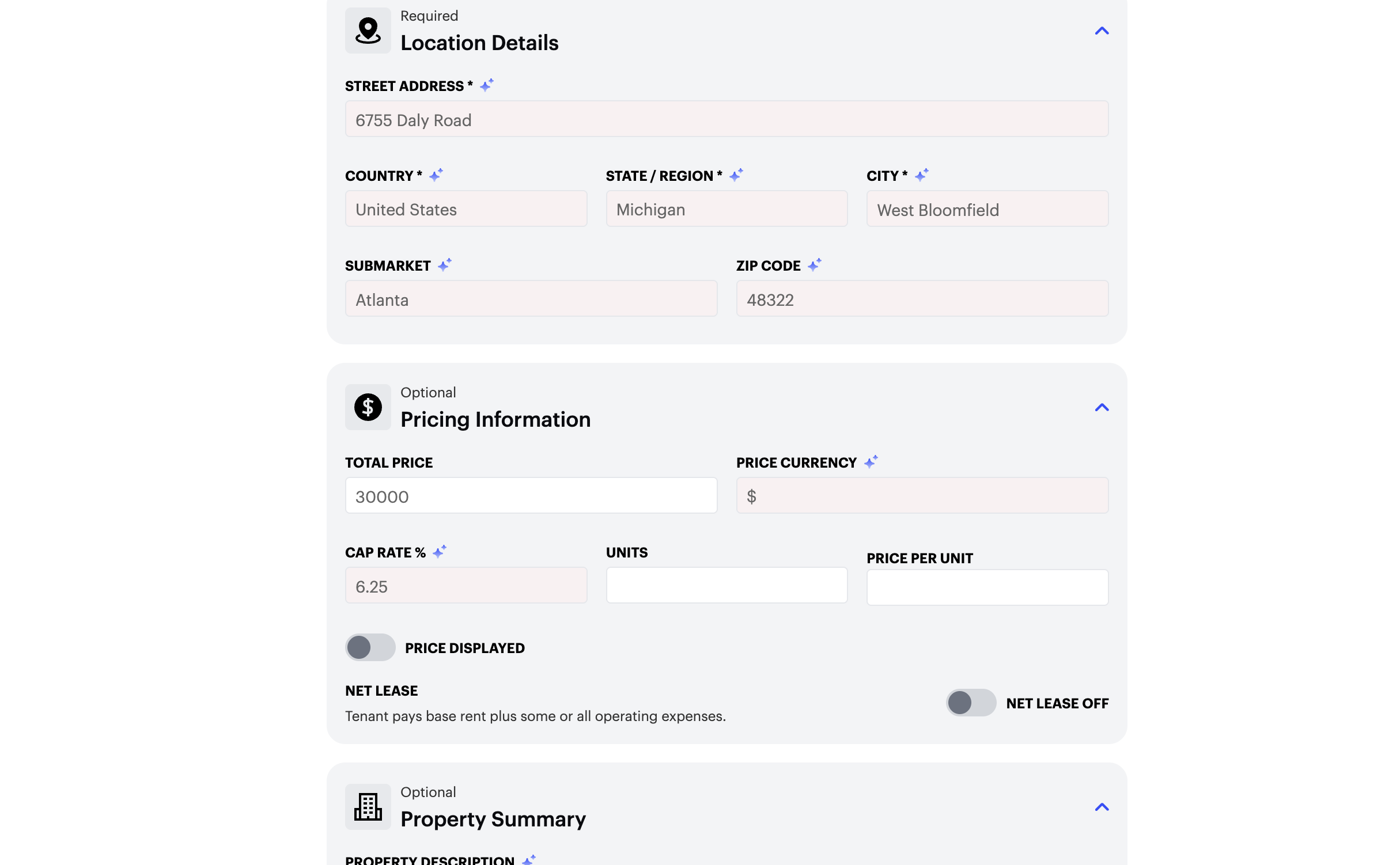
- SharpLaunch analyzes your files and fills in the property form, including the property name, type, address, size, description, brokers, availabilities, and other supported details.
- If your files contain different values for the same detail, choose which value to use.
- Add your property images and broker images.
- Review and edit the property, then save it.
Using two files
Property details are often spread across several documents. For example, a brochure may include the description and brokers, while a spreadsheet lists availabilities. Uploading both files lets SharpLaunch combine the information into one property.
Resolving conflicting information
When your files show the same detail in different formats, such as “120,000 SF” and “120000 sq ft”, SharpLaunch recognizes them as the same value. When your files contain different values for the same field, you’ll be asked to choose which one to use. Where possible, each option shows which file it came from.
SharpLaunch also avoids creating duplicate Property Facts, Key Highlights, brokers, availabilities, and demographic entries when the same information appears in both files.
Property Facts and Key Highlights
Factual details that can be shown as a label and value, such as Year Built: 2005, are added to Property Facts. Selling points are added to Key Highlights. This keeps your property’s facts and marketing highlights separate and easier to review.
Adding property and broker images
Images aren’t pulled from your documents, so you’ll add them during the intake process. You can add one or more property images. The first image you add becomes the Hero Image, and any additional images are added to the image gallery.
You can also add, change, or remove broker images. All images can be reviewed, replaced, or removed before you save the property.
Hero text
Unless you enter your own hero text, the Hero Header uses the property name and the Hero Subheader uses the property’s State, City. If only one of these is available, the subheader shows just that value. You can edit the hero text before saving.
Demographics
If your documents contain more than one demographic table, only the first table is imported into the Demographics section. Additional tables, such as those for other radiuses or drive times, aren’t imported, so you’ll need to add them manually.
Review and save
After the import, review the pre-filled property. You can edit or remove any imported details, including Property Facts, Key Highlights, brokers, availabilities, demographics, and images. When you save, the property is checked with the same required fields and validation rules as a property created manually.
Good to know
- You can upload up to two files per property.
- Images aren’t extracted from documents and must be added manually.
- Only the first demographic table is imported.
- Review imported details carefully before saving, especially sizes, prices, and broker contact information.