
Overview
The SharpLaunch Property Search Engine (PSE) WordPress plugin connects your
SharpLaunch property marketplace account with your WordPress website. It automatically syncs property listings and generates SEO-optimized pages for each property — ensuring your listings stay up to date without any manual data entry.
This plugin acts as a bridge between your SharpLaunch platform and your WordPress site, making properties discoverable on your website while keeping SharpLaunch as the single source of truth.
How It Works
Once installed and connected, the plugin creates property pages directly in WordPress using your SharpLaunch listing data.
Property pages will be SEO optimized with the following:
- Clean URLs to improve Googlebot crawl efficiency
- Canonical values that consistently point to production routes
- Metadata to improve title and snippet quality
- Valid HTML to improve crawler interpretation
- Sitemap refresh to accelerate indexing and de-indexing
- Faster sync to improve content freshness
Initial Setup (One-Time Configuration)
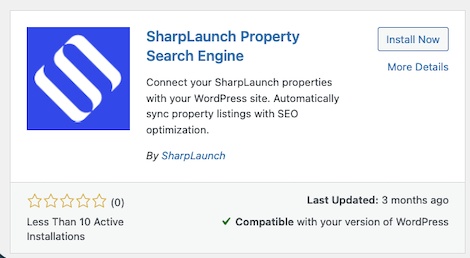
1. Plugin Installation
- Upload or install the plugin to your WordPress site at
/wp-content/plugins/sharplaunch-property-search-engine/ - Activate it from your WordPress Admin panel.
- Upon activation, the plugin will:
- Generate a unique security token
- Create default settings
- Register a new “Properties” custom post type in WordPress
2. Plugin Configuration
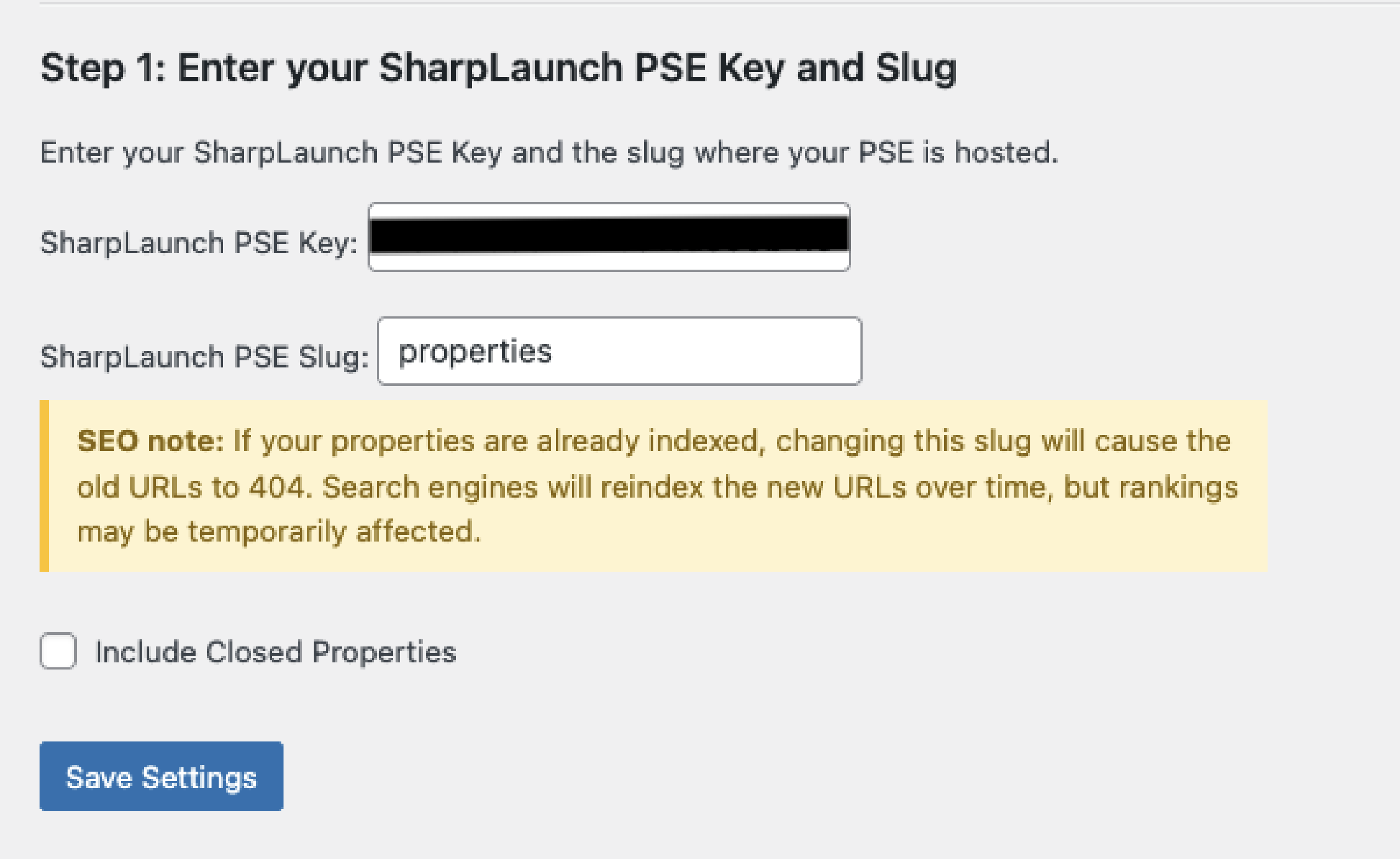
Navigate to Settings → SharpLaunch PSE Settings, then:
- Enter your PSE Key (provided by SharpLaunch; this is not your regular API key)
- Enter your PSE Slug, which defines where your properties appear (default:
properties) - Click Save Settings
Property Sync
An initial manual sync is required after installation to create all existing SharpLaunch properties as WordPress property posts.
After the first sync, updates happen automatically.
This includes:
-
New properties
-
Metadata updates
-
Slug changes
-
Status changes
-
Removed properties
Updates usually appear on the website within up to 2 minutes
Permalink Configuration
If you update the Property Search Engine slug, WordPress may need to refresh its permalink structure before the archive page becomes available.
Important
If the archive page is not visible after changing the slug:
Go to Settings → Permalinks and click Save Changes
This flushes permalinks and updates the route correctly.
Flexible Page Placement
You can display the Property Search Engine widget anywhere on your site using the shortcode:
How to use it
-
In Pages or Posts: Add a Shortcode block and enter
[sharplaunch_pse] -
In Classic Editor: Paste
[sharplaunch_pse]directly into the content -
In Templates (PHP): Use
<?php echo do_shortcode('[sharplaunch_pse]'); ?> -
In Block Theme Site Editor: Add a Shortcode block to any template and enter
[sharplaunch_pse]
Viewing Properties
In WordPress Admin
A new “Properties” section appears in your admin menu. Each synced property is listed there, similar to standard posts.
Note: properties cannot be manually edited since data syncs directly from SharpLaunch.
On Your Website (Frontend)
Each property has its own page at:
https://yoursite.com/pse-slug/property-slug
These pages include:
- A full-page iframe displaying the SharpLaunch property page
- SEO-optimized title and description metadata
- Optional CSS customization for consistent styling
What Happens During Sync
1. Create or update WordPress property posts
Each property is stored as:
-
Post type:
sl_properties -
Title: property name
-
Status: published
-
URL: generated from property slug
2. Store property metadata
Metadata includes:
-
property_url -
property_meta_title -
property_meta_description -
property_id
3. Process lifecycle events
-
New listings are created
-
Existing listings are updated
-
Removed listings are deleted
-
Status changes trigger sync automatically
4. Cache invalidation
Property URLs are cached for performance.
Cache clears automatically when:
-
properties sync
-
properties update
-
properties are deleted
Deactivation & Cleanup
- All synced properties are permanently deleted from WordPress
- Settings (PSE Key, slug, token) are removed
- The custom post type is unregistered
This ensures a clean uninstall with no residual data.
Troubleshooting
Properties Not Syncing
- Verify your PSE Key is correct
- Check your PSE Slug configuration
- Ensure your site can access the SharpLaunch API
- Review your WordPress error logs
Properties Not Displaying
- Confirm sync completed successfully
- Check the Properties section in WordPress Admin
- Ensure permalinks are enabled and saved under Settings → Permalinks
Automatic Sync Not Working
- Verify the endpoint URL and token shared with SharpLaunch
- Confirm your server allows incoming webhook requests
- Check your server or WordPress logs for webhook events
Requirements
- Active SharpLaunch account with API access
- PSE Key (provided by SharpLaunch)
- WordPress 5.0+
- PHP 7.4+
Support
If you need help installing, configuring, or troubleshooting your SharpLaunch WordPress plugin:
- Contact SharpLaunch Support
- Visit: https://sharplaunch.com/support
- Or reach out to your Client Success Manager