
Property Status is indicated in your Portfolio Overview and includes “Active”, “Draft”, “Under Contract”, and “Closed (Archived)”.
To update the status of a property, simply click on the 3 dots on the right side of the property and select the appropriate status for your property.
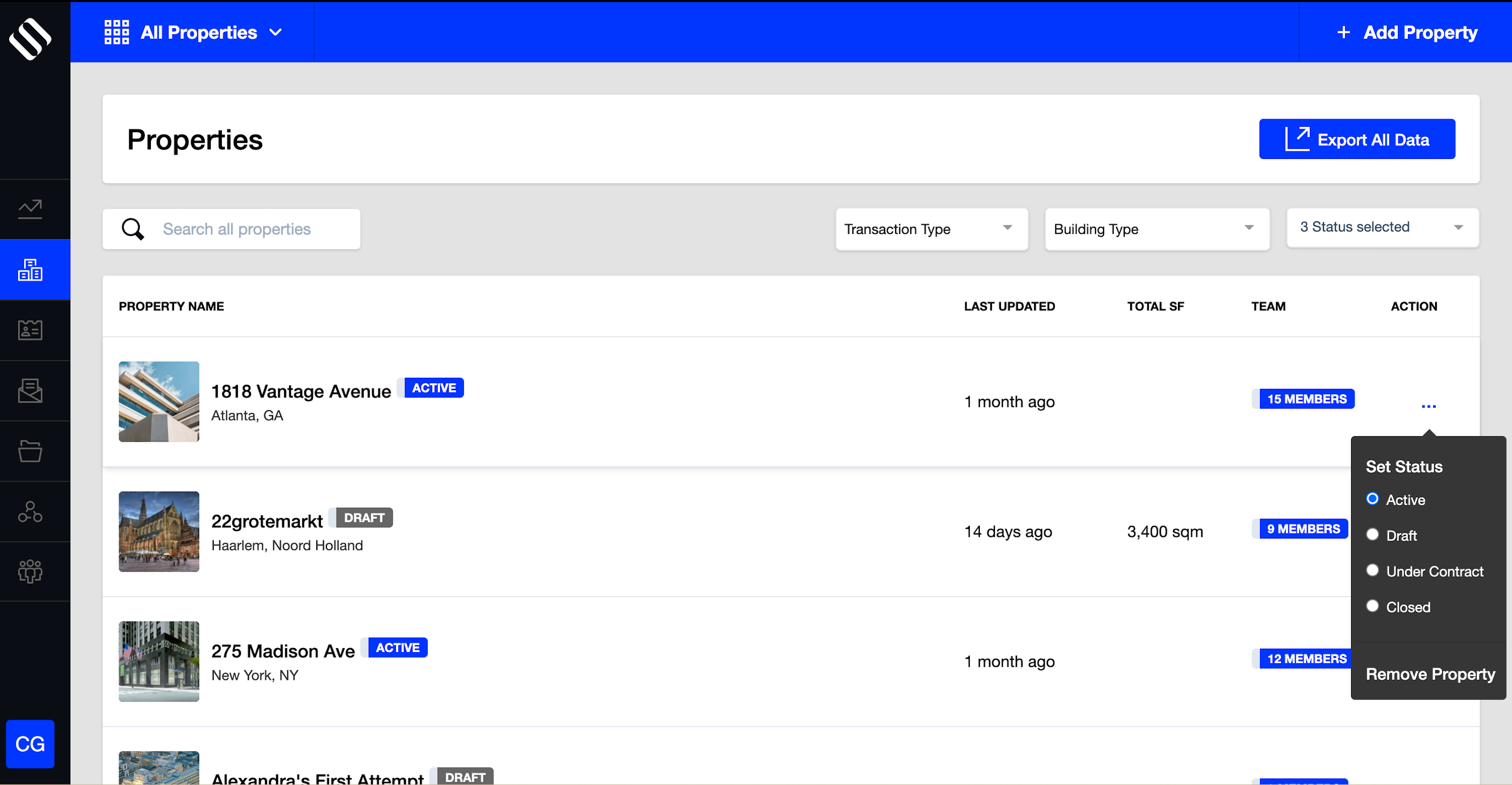
Property Status Definitions
Draft
The default mode for all properties when first created is “Draft” this means that the property is still in the editing process. This status is useful if you need to continue making edits to the property before it is published or send a private link.
Important: properties in “Draft” mode will not show up on your Property Search Engine or syndicated to CRE portals until it is listed as “Active”.
Active
This status means that your property is live. By setting the property as “Active”, it will be published to your Property Search Engine (PSE) and you can also opt to have it syndicated to our partner CRE portals.
Under Contract
This status means that the property is under contract or in escrow, and it will be displayed accordingly in the Property Search Engine.
Closed
Once the property has been leased or sold, and you’d like to remove it from your portfolio, you can change the status to “Closed”. This will remove the property from the Portfolio Overview. When a property is closed, the property is still visible both in the CMS and PSE if your PSE is configured to display closed properties.
Recording why a property closed
When you change an Active, Draft, or Under Contract property to Closed, a Reason for closing window appears. Select one of the following reasons:
- Sold
- Leased
- Expired listing
- Listing terminated
- Listing withdrawn
You must select a reason to save the change. If you cancel or close the window, the property keeps its previous status.
If you select Sold, you can also enter the sale price. This is optional. Lease pricing, rent per square foot, and lease terms can’t be recorded at this time.
Where the closing reason appears
The closing reason is displayed next to the Closed status on the property page. For sold properties with a recorded sale price, the price also appears at the top of the property page, beside the status and reason.
Closed properties on your PSE and WordPress site
If your PSE is configured to display closed properties, only properties closed as Sold or Leased will appear on your Property Search Engine and WordPress listings. Properties closed as Expired listing, Listing terminated, or Listing withdrawn are not shown.
Properties closed through the API
Properties created or set to Closed through the API are saved without a closing reason, and the Reason for closing window is not shown.
Removing (Archiving) or Relisting a Property
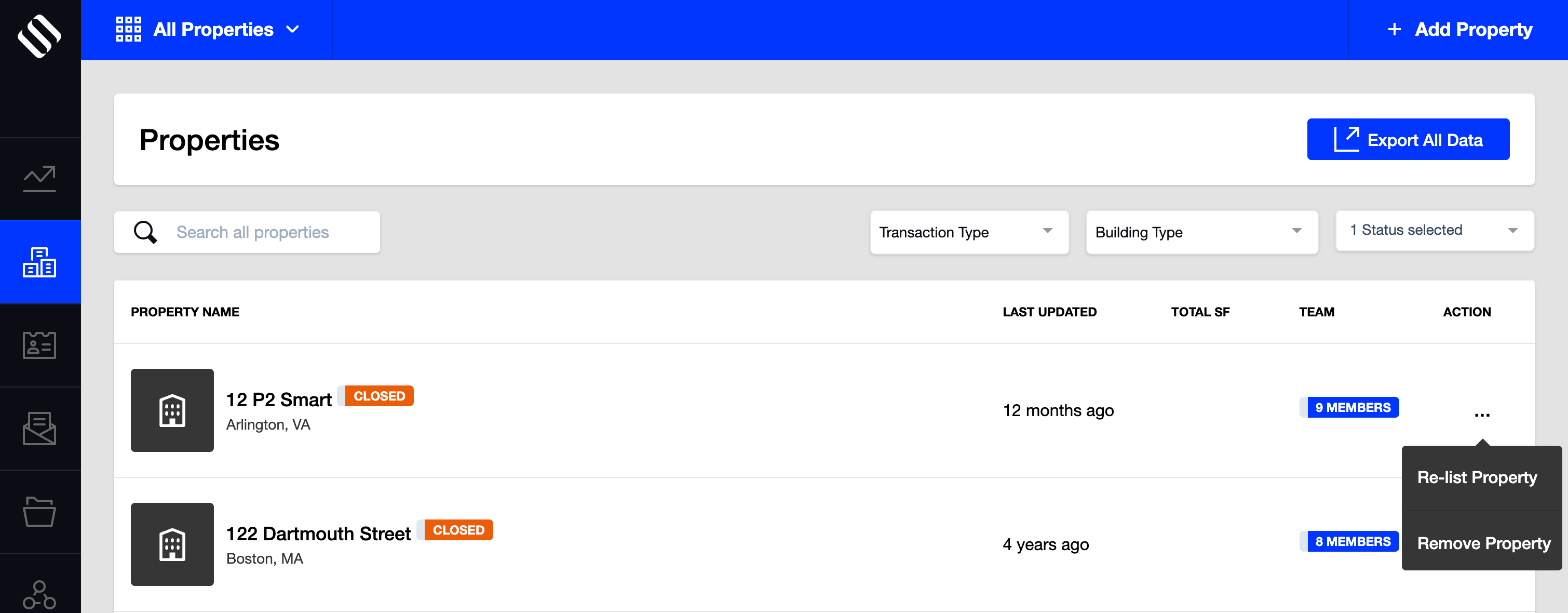
If you would like to re-list a Closed property, simply select “Re-List property”. If you would like to remove the property entirely from the system, select “Remove Property” (see the image below).
If you think you might want to re-list the property again in the future, don’t remove it. You can close it instead so that it can be re-listed in the future.