
When a property is marked Closed, its website can now stay live as a clean page with a “Closed” banner, instead of showing a 404 page. This keeps your closed deals working for you:
- Keep closed listings accessible. When a property is marked Closed with a “Sold” or “Leased” subtype, you can keep its page live and direct visitors to your active listings or another page on your website.
- Showcase past deals in search. The page keeps its original URL and retains key property details, so it can continue to appear in search results.
- Restore the full property website automatically. If you change the property’s status back to Active, Draft, or Under Contract, the full website is restored at the same URL.
Closed Property Pages are off by default. Until you turn them on, closed property websites continue to show a 404 page.
What visitors see
A closed property page keeps the top of the property website and adds a “Closed” banner:
- Hero section. The property’s hero image, title, subtitle and call to action stay visible, with a “Closed” banner across the top.
- Your SEO. The page’s URL and search-relevant content stay in place, so the property keeps building your track record in search results.
- A button you control. The banner includes a button, such as “View All Active Listings,” that sends visitors wherever you choose, for example your Property Search Engine (PSE).
Closed Property Pages work on all property website templates, including Avenue, NeoCasini, Broadway, Turing and Ventura.
See an example: 123mainstreettest.sharplaunch.com
How to turn “on” Closed Property Pages
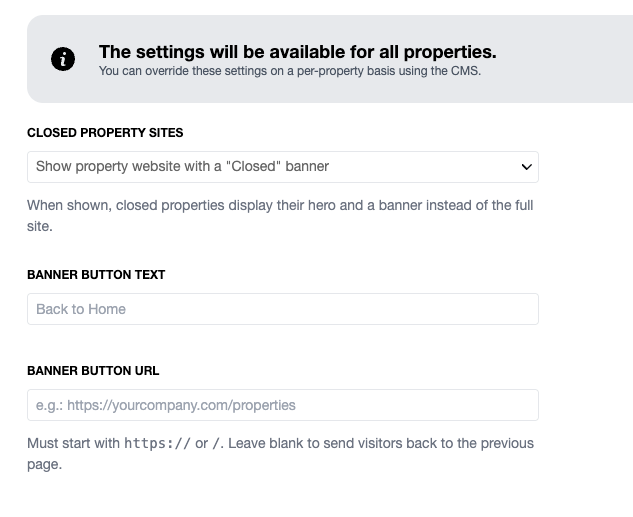
These settings apply to all of your closed properties.
- Go to Property Website Global Settings → Closed Properties.
- Under Closed Property Sites, select Show property website with a “Closed” banner. The other option, 404 page, is the default.
- Optionally, set the banner button:
- Banner Button Text: the label on the button, for example “View All Active Listings.”
- Banner Button URL: where you want to send visitors when they click on the button, for example your main Property Search Engine page.
- Click Save.
Tip: We recommend setting a Banner Button URL. If you leave it blank, the button takes visitors back to the page they came from. For visitors who arrived from a search engine, that means back to their search results instead of your other listings.
Override the settings for a single property
You can give one property different settings from your global defaults, for example a different button label or link, or a 404 page for a property you don’t want to keep online.
To do this, open the property in the CMS and change its Closed Property settings. Properties without an override follow your Global Settings.
Make closed properties clickable in your PSE
If your PSE displays closed properties, you can let visitors click through to their closed property pages. Only properties with a Closed subtype of “Sold” or “Leased” can be made clickable.
- Go to the PSE integration tab.
- Under Property Site Links, turn on Make Closed Properties Clickable.
- Save your changes.
Note: This option appears only after you turn on Closed Property Pages in Property Website Global Settings.
Relisting a closed property
When you change a closed property back to Active, Draft or Under Contract, its full website returns automatically. All content modules come back, the “Closed” banner disappears, and the URL stays exactly the same.
To learn how to relist a property, see Property Status Explained.