
Element and text style locking provides global admins with advanced control over page layout stability while allowing admins and global admins to safely update content. Field-based locking, role-based permissions, and adaptive UI visibility ensure that layouts and typography remain protected without disrupting everyday content workflows.
Locking controls allow global admins to restrict how elements are moved, resized, and styled. Locks are applied at the field level, enabling precise layout protection while maintaining full access to content editing.
This system is designed to:
-
Preserve layout and typography consistency in shared and global designs
-
Prevent accidental structural or styling changes
-
Separate layout control from content editing responsibilities
-
Simplify the editor interface based on user role
Field-Based Element Locking (Global Admin Only)
Each element includes four layout fields that can be locked individually:
-
Height
-
Width
-
Horizontal Position
-
Vertical Position
A lock control appears next to each field and is visible only to global admins.
Content Editing Is Always Allowed
Element locks affect layout and styling only. They never prevent content updates.
Admins and global admins can always:
-
Edit text copy
-
Replace images
-
Update maps and embedded content
Content edits remain fully available regardless of lock state.
Text Style Locking (Global Admin Only)
Text style locking allows global admins to control which text styling properties admins can modify, helping maintain brand consistency while enabling safe content updates.
Each text element includes configurable style fields:
-
Font family
-
Font size
-
Line height
-
Color
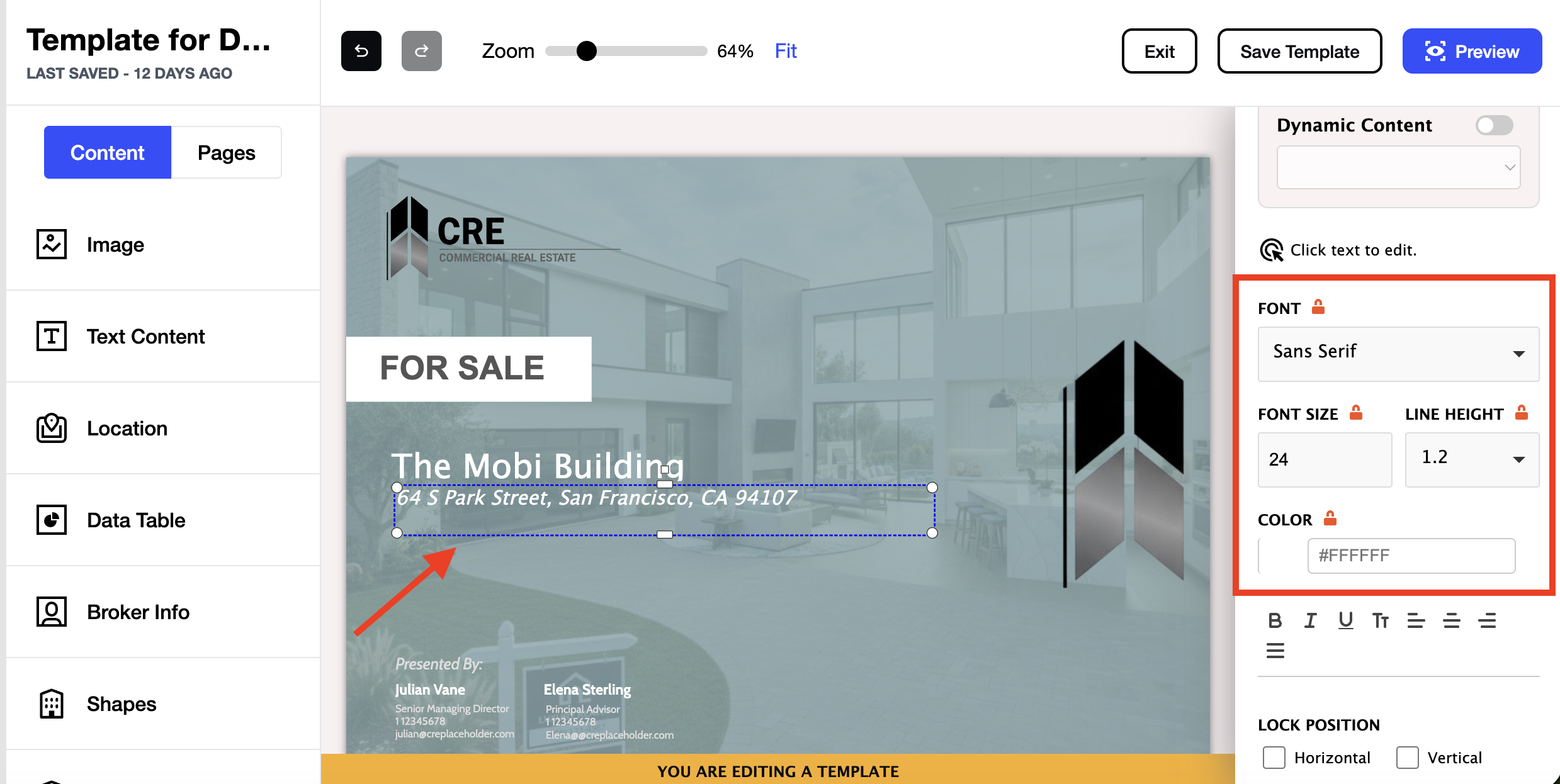
A lock checkbox is displayed directly below each field and is visible only to global admins.
Visibility Rules
-
Lock controls are visible only to global admins
-
Admins never see lock controls
Field-Level Restrictions
-
When all style fields are locked, admins cannot modify any text styling
-
When only some fields are locked, admins can edit only the unlocked properties
-
Unlocking a field immediately restores editability
-
Text style locks never prevent text editing—admins can always update copy
How Locking Works Together
Design Control
Global admins lock size, position, and style fields on elements.
Protection
Locked elements cannot be moved, resized, or restyled beyond the allowed rules.
Content Updates
Admins and global admins freely edit text, images, and maps.
Templates
Global admins manage templates; admins reuse them safely.
Global Template Permissions
Global Admins
-
Create global templates
-
Edit global templates
-
Delete global templates
Admins
-
Use existing global templates to create property flyers
-
Cannot create, edit, or delete global templates
This prevents accidental changes to shared templates while keeping them reusable across properties.
Role-Based Visibility
The flyer editor interface adapts automatically based on user role:
-
Global admins
-
See both Pages and Content buttons
-
-
Admins
-
Do not see Content buttons
-
This limits advanced layout controls to the appropriate role while keeping the interface focused and simplified for admins.
How to Access Lock Controls:
- Log in as a Global Admin
- Select a property flyer for which you want to lock elements
- Click “Create Flyer”

- Click the 3 dots > “Edit Template.”

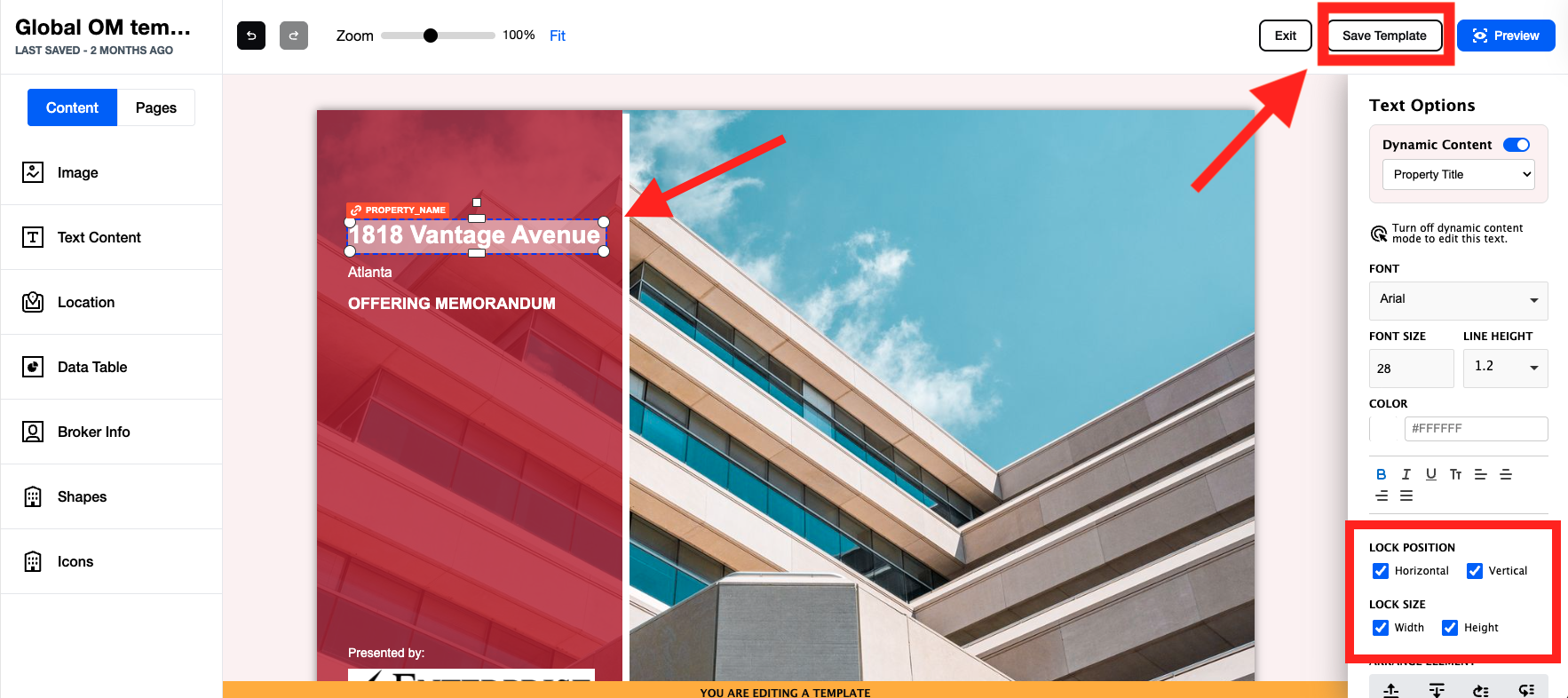
- Select an element on the flyer. You will see (4) check boxes to lock the selected element’s position and size, vertically and/or horizontally.
- If you wish to lock typography, select an element on the flyer > click the lock icons next to the fields you wish to lock down: Font, Font Size, Line Height, and/or Color.
7. After you have made your selections, click “Save Template.”
Summary
-
Field-based locking for element height, width, and position
-
Field-level locking for text styles (font, size, line height, color)
-
Lock controls visible only to global admins
-
Predictable movement and resizing restrictions
-
Content editing always remains available
-
Strict permissions for global templates
-
Role-based visibility for Pages and Content controls